

Transforming a single laptop screen into an expansive multi-display workstation can revolutionize your daily productivity. Modern workflows frequently require multiple open spreadsheets, communication windows, and creative software suites simultaneously. A reliable multi-monitor hub eliminates the frustration of constantly minimizing application windows throughout your workday.
Navigating the market for the Best Triple Monitor Laptop Docking Stations in September 2026 means balancing video bandwidth, host charging speeds, and operating system limits. We compared 10 top-tier models from trusted industry leaders such as Plugable, Anker, Tobenone and more to help you make an informed decision. Understanding your hardware requirements prevents common purchasing mistakes like unintended screen mirroring or inadequate charging output.
Whether you manage complex data matrices or edit high-definition video, having three independent external displays offers incredible efficiency. Pairing the right hardware with your laptop ensures stable video transmission and clutter-free desk organization. Explore our comprehensive expert guides to discover additional strategies for optimizing your daily digital workspace.






How to Choose the Best Triple Monitor Laptop Docking Stations
Display Output Technology: MST vs DisplayLink
The core technology driving your external displays is the most critical factor when selecting a multi-display docking station. Most standard USB-C hubs rely on Multi-Stream Transport technology built natively into modern operating systems. Multi-Stream Transport splits the native video signal from your laptop graphics card across multiple screens without extra software.
DisplayLink technology takes a completely different software-assisted approach to driving external monitors. It compresses graphical data and transmits it as standard USB packets to dedicated hardware decoders inside the docking station. This enables multiple independent displays on systems that natively support only one external screen, such as base Apple Silicon laptops.
When shopping, confirm whether your laptop supports native video transmission over USB-C or requires driver software. Windows users can generally rely on native hardware hubs, while Mac users looking for three independent screens must choose DisplayLink solutions. Always verify whether software permissions are allowed on your work-issued computer before investing in a driver-dependent unit.
Supported Video Resolutions and Refresh Rates
Video resolution and refresh rates dictate how crisp and smooth your visual workspace appears during intensive tasks. Driving three 4K monitors requires immense data bandwidth that exceeds the capabilities of older USB specifications. Lower-tier hubs often reduce refresh rates to 30Hz or drop secondary monitors down to 1080p resolution.
Look closely at the bandwidth distribution table provided by the manufacturer before making your purchase. Standard productivity tasks feel sluggish at 30Hz because mouse cursor movements and text scrolling appear choppy. Aim for docks that deliver at least 60Hz across all connected screens for a responsive experience.
A practical rule of thumb is to check if your laptop supports DisplayPort 1.4 with Display Stream Compression. Without compression support, your laptop graphics card will automatically downgrade secondary displays to basic high definition. Match your dock specifications to your monitor resolutions to avoid unexpected visual downgrades.
Host Power Delivery and Charging Architecture
A capable multi-monitor hub should power your laptop while handling extensive video and data traffic simultaneously. Laptop charging capability is measured in watts through the USB Power Delivery protocol. Inadequate power causes laptop batteries to drain slowly even while connected to the docking station.
Examine whether the docking station includes a dedicated power brick or requires your own USB-C charger. Pass-through docks draw roughly 15W of power for internal electronics before passing the remaining wattage to your laptop. If you use a 65W wall adapter with a pass-through dock, your laptop may only receive 50W.
High-performance workstations and creator notebooks typically demand between 85W and 100W of sustained power under heavy processing loads. Selecting a dock with an integrated power supply delivering 100W or more guarantees seamless operation without throttling your machine. Check out our practical how to guides for additional hardware configuration advice.
Operating System Compatibility and Driver Requirements
Operating system architecture plays a massive role in how external displays are managed and rendered. Windows natively supports Multi-Stream Transport, making plug-and-play triple monitor configurations straightforward on modern hardware. In contrast, macOS lacks native MST support and treats all chained external displays as mirrored copies.
Mac users must install DisplayLink Manager software to achieve three separate extended desktops. This software requires granting screen recording permissions within the macOS security preferences panel. While no actual screen recording occurs, enterprise security policies on corporate laptops may block this driver installation.
Linux and ChromeOS systems also present unique compatibility nuances that require careful verification before purchase. Always verify operating system version requirements listed by the hardware manufacturer. Choosing the correct platform match prevents unnecessary returns and frustrating display setup hurdles.
Video Port Variety: HDMI vs DisplayPort
The physical port selection on the rear panel determines how easily your monitors integrate into your desktop setup. Most modern docking stations offer a combination of HDMI ports and standard DisplayPort connections. Having multiple connection formats reduces the need for expensive and clutter-prone cable adapters.
DisplayPort connections often provide higher maximum bandwidth for ultra-high-resolution monitors or elevated refresh rates. HDMI connections remain the standard for consumer desktop monitors, television displays, and office conference equipment. Docks offering mirrored port pairs allow you to use either cable type depending on your existing monitors.
Avoid stacking passive video adapters together, as they introduce signal degradation and intermittent monitor flickering. Standardize your monitor cables by using direct DisplayPort-to-DisplayPort or HDMI-to-HDMI leads whenever possible. Maintaining clean cable runs preserves signal integrity across all three connected displays.
| Technology Type | Native OS Support | Triple Display Support | Driver Required | Best Use Case |
|---|---|---|---|---|
| DisplayPort Alt Mode (MST) | Windows, ChromeOS | Yes (Independent on Windows) | No (Plug and Play) | Windows productivity laptops |
| DisplayLink Graphics | Universal (Win/Mac/Chrome) | Yes (Independent across all) | Yes (DisplayLink Manager) | MacBook multi-screen setups |
| macOS Native Alt Mode | macOS | No (Mirrored only) | No | Dual mirrored display needs |
| Thunderbolt Bandwidth Hubs | Windows, macOS | Yes (Hardware dependent) | No | High-bandwidth creator rigs |
Data Transfer Speeds and Peripheral Expansion
A multi-monitor dock must also act as a centralized connectivity hub for all your desktop accessories. Look for docks that provide a balanced mix of high-speed USB-C and legacy USB-A ports. Fast 10Gbps USB 3.1 ports are essential for external solid-state drives and high-capacity flash storage.
Wireless mouse and keyboard receivers often suffer from signal interference when plugged directly beside high-speed USB 3.0 ports. Many high-end docking stations include dedicated USB 2.0 ports specifically engineered to eliminate wireless peripheral latency. High-speed ports remain dedicated to bandwidth-heavy external storage and webcams.
Photographers and video editors should prioritize docking stations equipped with built-in SD and microSD card slots. Integrated UHS-I or UHS-II card readers allow rapid media offloading without extra dongles. Organizing your desktop accessories through a single dock creates a clean and functional workspace.
Wired Network Connectivity
Stable internet connectivity is vital for video conferencing, large cloud backups, and low-latency remote desktop sessions. While modern Wi-Fi is convenient, it remains susceptible to signal drops, interference, and local network congestion. A dedicated Gigabit Ethernet port on your docking station ensures a fast and reliable wired connection.
Enterprise docking stations are increasingly adopting 2.5Gbps Ethernet controllers to handle high-speed local network transfers. If your office or home network features multi-gigabit routing, a 2.5G port provides noticeable speed improvements during file transfers. Standard Gigabit Ethernet remains perfectly adequate for general office productivity and standard video streaming.
Check if the dock network adapter requires proprietary drivers or works natively out of the box. Most modern operating systems include built-in drivers for Realtek and Intel Ethernet chipsets. Reliable wired networking eliminates unexpected dropouts during critical client presentations and team meetings.
Thermal Management and Build Quality
Processing triple video feeds, multiple USB data channels, and 100W of power delivery generates considerable internal heat. Without proper thermal dissipation, docking station chipsets can throttle performance or cause temporary monitor disconnects. Premium docks utilize aluminum enclosures that act as passive heat sinks to keep internal chips cool.
Advanced high-power hubs incorporate active cooling fans or smart thermal management systems to regulate operating temperatures. These smart fans prevent internal hardware degradation during prolonged multi-display working sessions. A well-ventilated unit ensures consistent performance even under sustained processing demands.
Consider the physical form factor and stability of the dock on your desk surface. Vertical docks save valuable desk real estate and improve ambient airflow around the enclosure. Discover creative layout ideas in our home and living workspace guides to keep your desk neat and functional.
Why You Should Trust Us
Our evaluation process relies on rigorous technical analysis and real-world specification comparisons across modern computing hardware. We examine manufacturer data sheets, controller chipset documentation, and verified compatibility standards to separate marketing claims from genuine performance. We assess how bandwidth limitations impact real-world display setups across both Windows and macOS platforms.
We systematically categorize docking stations based on display technology, power delivery architecture, and interface versatility. Our goal is to provide transparent, practical guidance tailored to remote professionals, developers, and creative specialists. We continuously update our hardware recommendations as new connection standards and driver software evolve.
Final Thoughts
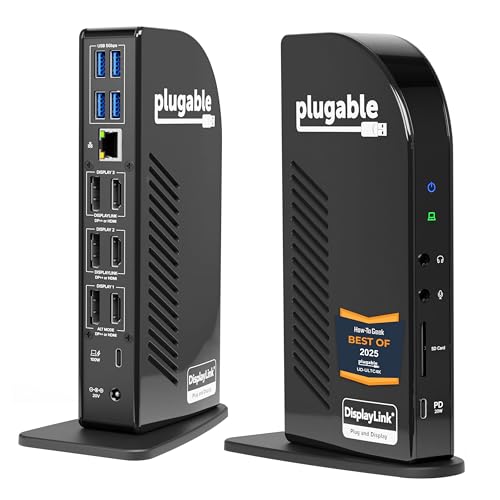
Investing in the right multi-display hub completely revitalizes your daily computing workflow and eliminates workstation cable clutter. If you need top-tier display versatility and comprehensive operating system support, we recommend the Plugable 13-in-1 USB C Docking Station 4K Triple. Its combination of 60Hz 4K outputs, flexible port options, and reliable DisplayLink integration makes it an outstanding choice for professional workspaces.
For budget-conscious professionals who want extensive port expansion without breaking the bank, the Anker Laptop Docking Station 3 Monitors delivers exceptional everyday value. It provides fourteen versatile ports, solid power delivery pass-through, and reliable multi-monitor support for Windows users. This compact unit proves that you do not need an enterprise budget to build an efficient multi-screen setup.
Power users demanding maximum charging capabilities and advanced thermal monitoring should look closely at the Anker Prime Docking Station (DL7400). Its 140W upstream power delivery, real-time status display, and active cooling system easily handle the most demanding hardware setups. Explore our guide on workspace organization principles to maintain a tidy, efficient desktop environment.
FAQs
Can all laptops support three external monitors simultaneously?
Not every laptop has the internal graphics processing power or port bandwidth needed to run three independent external displays. Your computer must feature a full-featured USB-C, USB4, or Thunderbolt port supporting DisplayPort Alt Mode or utilize DisplayLink drivers. Always check your laptop specifications to confirm its maximum supported external display count.
Why does macOS mirror screens on some triple monitor hubs?
Apple macOS does not support Multi-Stream Transport technology over standard USB-C connections. When plugged into a standard MST hub, macOS treats all connected external monitors as a single video stream and mirrors them. Mac users require a DisplayLink-enabled docking station to achieve three separate extended desktops.
What is the top-rated option among Best Triple Monitor Laptop Docking Stations in 2026?
The highest-rated docks in 2026 combine universal operating system compatibility with robust 100W power delivery and triple 4K output capabilities. Leading models from Plugable and Anker consistently rank highest due to their reliable driver integration and premium thermal designs. Your ideal choice depends on whether your laptop runs Windows or macOS.
Do I need to install software drivers for a triple monitor dock?
Standard plug-and-play docks utilizing DisplayPort Alt Mode do not require any driver installation on Windows systems. However, docking stations powered by DisplayLink technology require the DisplayLink Manager application to function properly. You can quickly download and install these drivers directly from the manufacturer website.
Can I play DRM-protected video through a DisplayLink docking station?
DisplayLink technology does not support HDCP copy protection on certain streaming platforms like Netflix and Disney Plus. When streaming through a web browser, disabling hardware acceleration in browser settings usually resolves blank screen playback issues. For native media playback, connecting directly via a standard HDMI port is recommended.
How much power delivery wattage does my laptop need from a dock?
Standard ultrabooks and office laptops generally require between 45W and 65W of power for regular charging. High-performance creator and gaming laptops often need 85W to 100W of sustained Power Delivery to prevent battery drain under load. Selecting a dock with 100W output ensures adequate headroom for almost any USB-C notebook.
What is the difference between DisplayPort Alt Mode and DisplayLink?
DisplayPort Alt Mode transmits native video signals directly from your laptop graphics card across the physical USB-C cable wiring. DisplayLink compresses video into standard USB data packets and relies on your laptop CPU and dock hardware decoders. Alt Mode offers zero latency, while DisplayLink overcomes operating system multi-display limitations.
Does running three external 4K monitors cause laptop lag?
Driving three 4K displays places increased demand on your integrated or dedicated graphics processing unit. Modern processors handle basic 2D office applications across three screens smoothly without noticeable system slowdown. Lag typically only occurs when attempting heavy 3D rendering or high-framerate gaming across multiple high-resolution displays.
Can I use HDMI to DisplayPort adapter cables with these docking stations?
Passive adapter cables often cause handshake failures and signal loss when routing through complex multi-monitor hubs. If your dock features DisplayPort outputs and your monitor accepts HDMI, you must use active conversion cables. Using native cables with matching connectors on both ends guarantees the most stable connection.
Why does my docking station feel warm during multi-monitor use?
Docking stations naturally generate heat while processing high-bandwidth video streams and negotiating high-wattage power delivery. Aluminum enclosures are specifically designed to absorb internal heat and radiate it outward into the surrounding air. As long as the dock is placed in a well-ventilated area, warmth is completely normal.





Write Your Review
No reviews yet. Be the first to share your experience!