

Digital artists know that transitioning ideas from imagination to screen requires absolute precision. Finding the Best Tablets for Sketching in September 2026 means balancing responsive stylus input, exceptional color accuracy, and comfortable display surfaces that mimic natural drawing paper.
Whether you work as a concept illustrator or a passionate hobbyist, hardware limitations can disrupt your creative flow. Subtle issues like cursor parallax, stylus lag, and washed-out color reproduction often hinder your artistic potential before a piece is even finished.
To help you set up an efficient creative space, similar to how artists configure their physical studios alongside a functional space-saving bedroom storage setup, we analyzed 4 standout models. Our detailed breakdown evaluates pen pressure, screen calibration, and workspace ergonomics to help you pick the right creative companion.


Screen Resolution and Pixel Density
Screen resolution determines how crisply your linework and textures render while sketching. A standard Full HD panel works well for modest screen diagonals, but larger displays demand higher pixel densities to avoid visible pixelation during close-up brushwork.
When working across 19-inch to 24-inch canvases, upgrading to 2.5K QHD or full 4K UHD ensures every fine stroke remains razor-sharp. Higher resolutions also allow you to keep tool palettes, reference images, and active layers visible without overcrowding your main drawing canvas.
As a practical rule of thumb, aim for a pixel density of at least 130 pixels per inch. This threshold prevents coarse stair-stepping artifacts when inking fine line art and significantly reduces eye fatigue during extended creative sessions.
Stylus Pressure Sensitivity and Initial Activation Force
Stylus performance defines the tangible feel of digital sketching. High-end modern pens now provide up to 16,384 levels of pressure sensitivity, delivering ultra-smooth gradient transitions and immediate dynamic response to varying hand pressure.
Equally critical is the initial activation force, which is the tiny amount of physical pressure required before the tablet registers a stroke. A stylus that activates with 3 grams or less allows delicate hair-thin linework and subtle shading without forcing you to press hard onto the glass.
Look for battery-free pens featuring advanced smart chips and built-in tilt recognition up to 60 degrees. Tilt support lets you angle your stylus naturally for broad pencil shading, closely replicating traditional graphite and charcoal sketching techniques.
Color Gamut Coverage and Factory Calibration
Accurate color reproduction ensures that the hues you paint on screen translate perfectly to client monitors and printed media. A screen with broad gamut coverage prevents unexpected shifts in saturation and contrast when exporting your artwork.
For standard digital illustration and web publishing, a minimum of 98 percent sRGB coverage is necessary. If your workflow includes gallery printing or editorial publishing, prioritize displays offering 96 percent or higher Adobe RGB alongside Calman verification for minimal color deviation.
Verify that the display delivers a low Delta E measurement, ideally below 1.5 out of the box. Low color deviation saves hours of post-processing adjustments and ensures total visual consistency across every client deliverable.
Glass Etching and Drawing Surface Texture
Drawing on slippery bare glass feels unnatural and can compromise your line confidence. Premium sketching monitors incorporate anti-glare nano-etched glass to introduce subtle surface friction that replicates traditional toothy paper.
Etched glass finishes also diffuse ambient studio lighting and overhead glare, preventing harsh reflections from obscuring your artwork. Unlike stick-on matte films that degrade and bubble over time, chemically etched glass provides durable, permanent resistance against stylus scratches.
Consider pairing your etched screen with felt stylus nibs for an authentic pencil-on-paper feel. This combination gives you superior braking friction, providing steady line control when sketching intricate crosshatching patterns.
Full Lamination and Parallax Reduction
Parallax refers to the visual gap between your physical pen nib and the digital cursor rendered underneath the glass. On non-laminated displays, thick air gaps between the surface glass and LCD panel can make precise cursor alignment difficult.
Fully laminated screens bond the protective glass, touch sensor, and display panel into a single unified layer. This process virtually eliminates optical parallax, placing the digital ink directly beneath your stylus tip for pinpoint sketching accuracy.
Minimizing parallax is essential for artists who rely on swift hatching, technical drafting, or delicate line art. A laminated display ensures natural hand-eye coordination so you can focus entirely on your creative output.
Display Size and Workspace Integration
Choosing the right physical canvas size depends heavily on your studio dimensions and mobility requirements. Compact 14-inch tablets easily slide into a backpack, making them ideal for artists who draw at coffee shops or during daily commutes.
Larger 19-inch to 24-inch pen displays offer an expansive workspace that allows full-arm sketching from the shoulder rather than just the wrist. However, these substantial units require dedicated desk real estate and robust cable management to maintain a tidy creative environment.
If you work in a tight studio apartment, managing your equipment layout efficiently is just as important as choosing compact furniture options for small spaces. Measure your available desk depth before committing to a wide-format drawing monitor.
Key Specifications Comparison
To help you evaluate the key technical differences across the market, the comparison table below outlines the core hardware specifications of modern drawing tablets.
| Tablet Feature | Entry Portable (14″) | Mid-Size Studio (18″ – 22″) | Large Professional (24″) |
|---|---|---|---|
| Target Resolution | Full HD (1920×1080) | 2.5K QHD to 4K UHD | 4K UHD (3840×2160) |
| Pressure Sensitivity | 4,096 to 8,192 Levels | 16,384 Levels | 16,384 Levels |
| Color Gamut Support | 98% sRGB | 96% – 99% Adobe RGB | 99% Adobe RGB / 98% P3 |
| Surface Treatment | Anti-Glare Matte Film | Nano-Etched Glass | AG & AF Etched Glass |
| Mounting / Stand | Integrated Legs | Adjustable Desk Stand | VESA 100×100 / Pro Stand |
Customizable Shortcuts and Workflow Controllers
Repetitive tasks like zooming, canvas rotation, brush resizing, and undoing strokes can slow down your creative rhythm. Having dedicated hardware shortcut buttons and physical dial wheels streamlines these frequent adjustments dramatically.
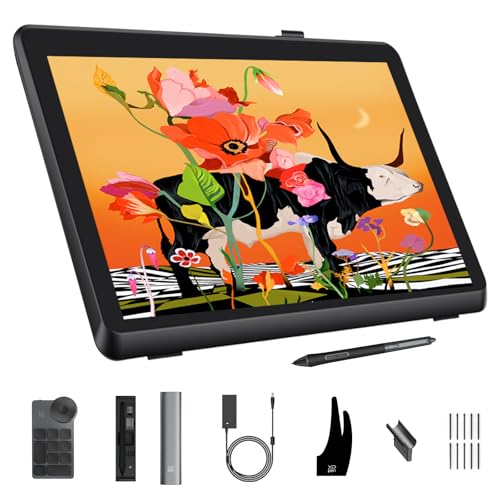
Many modern drawing monitors now include wireless mini keydials instead of fixed bezel buttons. This modular design allows you to place shortcut controls wherever your non-dominant hand rests naturally, keeping your drawing arm relaxed and unencumbered.
Programmable dials offer tactile mechanical feedback, enabling smooth incremental adjustments to brush sizes without taking your eyes off the artwork. Make sure the accompanying driver software allows per-application profile switching across Photoshop, Clip Studio Paint, and Krita.
Ergonomic Stands and VESA Mounting Compatibility
Drawing on a flat horizontal surface for extended periods can cause severe neck strain and shoulder fatigue. An adjustable display stand that tilts between 15 and 80 degrees lets you find an optimal posture for both loose sketching and precise detail work.
For maximum studio flexibility, look for displays that feature standard 75x75mm or 100x100mm VESA mounting patterns. Attaching your pen monitor to an articulated monitor arm lets you effortlessly reposition the screen or push it away when not in use.
Much like investing in ergonomic support positioning tools to maintain healthy posture, an adjustable drawing stand prevents physical discomfort during demanding creative marathons.
Operating System and Software Compatibility
A high-performance pen display must integrate cleanly with your existing computing hardware and creative software ecosystem. Modern displays offer universal compatibility across Windows, macOS, ChromeOS, Linux, and select Android mobile workstations.
Single-cable USB-C connectivity simplifies desk setup by transmitting video, data, and power over a single connection. However, make sure your host laptop or desktop supports DisplayPort Alternate Mode over USB-C to take full advantage of this streamlined connection.
Always verify that the tablet drivers are regularly maintained and updated for major operating system updates. Stable drivers prevent frustrating pen freezes and ensure seamless pressure curve calibration across popular digital art applications.
Why You Should Trust Us
Our review process relies on comprehensive technical data analysis, verified hardware specifications, and objective feature comparisons. We evaluate each digital drawing display across fundamental performance metrics including color gamut accuracy, pixel density, input responsiveness, and physical build quality.
We analyze real-world workflow requirements for digital painters, concept artists, and graphic designers. Rather than focusing on superficial marketing claims, we assess factory calibration standards, stylus activation mechanics, and long-term driver reliability to identify equipment that truly supports artistic productivity.
Our buyer guides are continuously updated using automated dynamic systems to ensure that pricing ranges, product availability, and market comparisons stay accurate throughout 2026. We maintain complete editorial independence to provide transparent, reliable recommendations you can trust.
Final Thoughts
Selecting the Best Tablets for Sketching comes down to your personal workspace dimensions, resolution needs, and artistic workflow. For professional illustrators and visual designers who demand maximum canvas area and stunning visual clarity, the XPPen Artist Pro 24 Gen2 23.8″ 4K Drawing Tablet represents the ultimate studio centerpiece with its 4K UHD screen, Calman verified colors, and 16K pressure styluses.
If you are looking for an exceptional balance of ultra-sharp pixel density and manageable desk footprint, the XPPen 4K UHD Artist Pro 19 Gen2 Drawing Tablet delivers gorgeous 4K detail on an 18.4-inch laminated canvas. Its dual stylus package and wireless keydial provide top-tier workflow efficiency for serious digital painters.
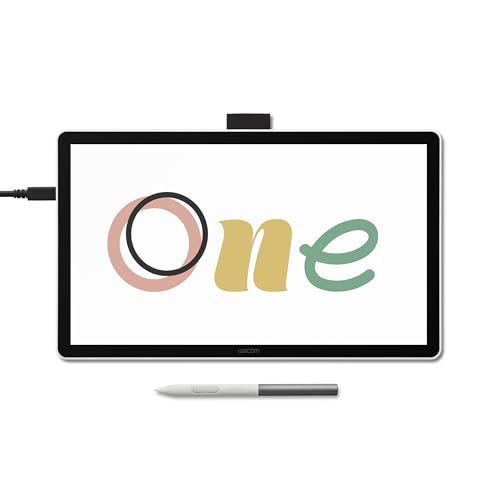
For versatile everyday studio drawing, the XPPen Artist Pro 22 Gen 2 22″ 2.5K Drawing Tablet provides generous 2.5K drawing space with exceptional color precision and an ergonomic adjustable stand. Meanwhile, beginners and students seeking a dependable, budget-friendly entry into pen displays will appreciate the Wacom One 14, Drawing Tablet with IPS Fulll HD for its seamless software setup and reliable battery-free pen performance.
As you refine your creative studio setup with dedicated hardware, remember that organizing your surrounding work environment with practical solutions like reliable height elevation risers helps maintain ergonomic comfort across all your daily creative projects.
Frequently Asked Questions
What makes the Best Tablets for Sketching in 2026 different from standard computing tablets?
Dedicated sketching displays focus specifically on artistic input, offering textured anti-glare surfaces, zero-lag digitizers, and battery-free styluses with over 16,000 pressure levels. They are engineered to act as secondary monitors for professional creative desktop software rather than standalone mobile devices.
Do I need 4K resolution on a drawing tablet?
While 2.5K QHD provides plenty of clarity on screens up to 22 inches, 4K resolution becomes noticeably sharper on 19-inch and 24-inch panels. It eliminates jagged lines when working close to the glass and allows you to display reference windows alongside your active canvas.
How much does stylus pressure sensitivity matter for digital sketching?
Higher sensitivity levels, such as 8,192 or 16,384 levels, provide smoother transitions in opacity and line width. This sensitivity allows the tablet to capture delicate, low-pressure strokes that closely mimic traditional pencil and ink sketchwork.
What is the benefit of a fully laminated display?
A fully laminated screen eliminates the air gap between the surface glass and the LCD panel underneath. This significantly reduces parallax, making your digital brush strokes appear directly under the pen nib for superior drawing precision.
Can I connect these drawing tablets using a single USB-C cable?
Yes, many modern pen displays support full-featured USB-C connections that transmit video, data, and power simultaneously. However, your computer port must support DisplayPort Alternate Mode and provide sufficient power output.
Why is Calman verification important for digital art displays?
Calman verification certifies that a display has undergone rigorous factory calibration to achieve minimal color deviation with a Delta E under 1.5. This guarantees that your sketches and finished illustrations display consistent, true-to-life colors across different screens and print media.
Are etched glass screens better than matte screen protector films?
Chemically etched glass is much more durable than applied plastic films and will not scratch or bubble over time. It provides a consistent paper-like tactile resistance while diffusing overhead studio reflections effectively.
Do digital pens require batteries or frequent charging?
Most modern professional drawing styluses use electromagnetic resonance technology and are completely battery-free. They draw passive power directly from the screen surface, meaning you never have to pause your drawing session to recharge the pen.
What is the advantage of a wireless shortcut keydial?
A separate wireless keydial allows you to position physical buttons and rotary dials wherever your non-drawing hand rests comfortably. This modular approach improves drawing ergonomics and speeds up frequent actions like zooming, brush resizing, and canvas rotation.
Which operating systems are compatible with modern drawing tablets?
Modern pen displays offer broad compatibility across Windows, macOS, ChromeOS, Linux, and select Android smartphones or tablets. Always check the manufacturer specifications to ensure driver support for your specific operating system version.



Write Your Review
No reviews yet. Be the first to share your experience!