

Working across macOS and Windows environments often introduces unexpected storage hurdles when transferring large multimedia projects between machines. Many standard drives arrive preformatted for a single operating system, which leaves users unable to write data on secondary workstations without reformatting. Investing in the Best External Hard Drives for Both Mac and PC eliminates this friction immediately by delivering effortless cross platform compatibility.
In September 2026, external storage hardware offers faster controller speeds and higher density enclosures than ever before. Users no longer have to compromise between vast stationary desktop archives and ultra fast portable solid state drives. Exploring our practical how to guides helps you master file system management and avoid accidental data formatting errors across operating systems.
This comprehensive 2026 guide analyzes 7 leading options across diverse form factors, performance tiers, and storage capacities. We examine the exact technical specifications that matter most for dual system setups so you can make a reliable long term hardware investment.


File System Compatibility and Partition Formatting
File system architecture dictates how smoothly an external drive interacts with both Apple macOS and Microsoft Windows operating systems. The NTFS file system is native to Windows but operates in a read only mode on macOS unless you install third party software. Similarly, Apple formats like APFS and HFS Plus cannot be read natively on Windows computers without specialized utility tools.
Formatting your external drive using exFAT delivers the most seamless native read and write capability across both operating systems. Unlike the older FAT32 format, exFAT removes the four gigabyte individual file size restriction entirely. This format allows you to transfer large video files, virtual machine images, and raw photography archives without encountering partition constraints.
Always format your drive using exFAT with an appropriate allocation unit size before moving critical production assets. If a drive arrives formatted in NTFS, use macOS Disk Utility or Windows Disk Management to initialize it cleanly. Keep in mind that exFAT does not feature journaling, which makes safe drive ejection essential prior to disconnecting cables.
Solid State Drives Versus Traditional Mechanical Hard Drives
Deciding between solid state drives and mechanical hard disk drives represents the primary fork in your hardware selection process. Solid state media relies on flash memory chips that provide sustained transfer speeds up to ten times faster than mechanical drives. Mechanical drives utilize spinning magnetic platters and physical read heads, which naturally caps their sequential read and write speeds.
Solid state drives excel for active video editing, gaming libraries, and mobile workflows where accidental physical drops can occur. Traditional mechanical drives remain the most cost effective solution when building immense multi terabyte cold storage archives or system backups. Understanding your primary computing routine determines whether you should prioritize high transfer speeds or immense storage capacity.
A practical rule of thumb is using portable solid state storage for daily active project files and mechanical drives for scheduled archives. Pairing both storage technologies across your workstation ensures optimal editing performance while keeping your overall hardware budget balanced.
Interface Protocols and Data Transfer Bandwidth
The interface connection between your external enclosure and computer host port sets the maximum bandwidth for all file transfers. Standard USB 3.0 and USB 3.2 Gen 1 interfaces provide theoretical bandwidth limits up to five gigabits per second. Advanced USB 3.2 Gen 2 and Gen 2×2 protocols elevate theoretical bandwidth ceilings to ten and twenty gigabits per second.
Mechanical hard drives typically max out around two hundred and seventy megabytes per second, making USB 3.0 interfaces perfectly sufficient. In contrast, high performance NVMe solid state drives require USB 3.2 Gen 2 interfaces to reach speeds near two thousand megabytes per second. Connecting a high speed drive to an outdated legacy port bottlenecks performance down to the slowest connection link.
Check the exact USB generation of every port across your Mac and PC hardware before purchasing high performance external storage. Video creators working with uncompressed 4K footage should prioritize external drives capable of reaching at least one thousand megabytes per second.
Cross Platform File System and Interface Comparison
Understanding how different file systems and connection standards perform helps you configure external storage properly for cross platform work. The table below outlines native compatibility and operational parameters across both macOS and Windows operating systems.
| File System / Spec | macOS Compatibility | Windows Compatibility | Max File Size | Recommended Application |
|---|---|---|---|---|
| exFAT | Native Read & Write | Native Read & Write | 16 Exabytes | Cross-platform editing & file sharing |
| NTFS | Native Read Only | Native Read & Write | 16 Terabytes | Windows-dedicated system backups |
| APFS | Native Read & Write | No Native Support | 8 Exabytes | macOS Time Machine & system drives |
| FAT32 | Native Read & Write | Native Read & Write | 4 Gigabytes | Legacy media players & small files |
| USB 3.2 Gen 1 | Full Support (5 Gbps) | Full Support (5 Gbps) | Unlimited | Mechanical hard drives & basic backups |
| USB 3.2 Gen 2×2 | Limited to 10 Gbps | Full Support (20 Gbps) | Unlimited | High-speed NVMe solid state workflows |
Consulting these compatibility parameters guarantees that you choose the correct file format before writing significant project archives to a new drive.
Storage Capacity Planning and Long Term Scalability
Selecting appropriate capacity prevents premature drive obsolescence and avoids mid project hardware reorganizations. Modern digital workflows generate substantial data footprints from high resolution RAW photos, 4K video footage, and expansive application files. Purchasing a drive that only accommodates your present data volume will force you to purchase secondary hardware within a few months.
To calculate your ideal capacity accurately, multiply your current active storage requirements by a factor of two or three. A two terabyte portable drive suits everyday document storage, photography catalogs, and moderate video production tasks easily. Users maintaining comprehensive multimedia libraries or multi system disk images should consider desktop units scaling from ten to fourteen terabytes.
When planning your workstation storage layout, exploring how to build a storage system on a budget provides helpful organizational principles. Establishing a clear data hierarchy early protects against digital clutter and ensures smooth file management across platforms.
Form Factor and Power Delivery Requirements
External hard drives fall into two main categories, namely bus powered portable units and stationary desktop enclosures. Portable drives draw all operational power directly from the host computer through the USB interface cable without requiring wall outlets. Desktop models utilize larger 3.5 inch internal platters and rely on a dedicated external AC power adapter to operate.
Desktop hard drives offer expansive storage limits and economical cost per terabyte for stationary office workstations. Portable solid state drives offer pocket sized portability and complete freedom from wall chargers for users on the move. Connecting desktop units requires dedicated desk space, while portable drives slip easily into laptop sleeves and camera bags.
When configuring multiple peripheral drives, organizing your desktop setup keeps power cables and data lines tidy and secure. Always plug desktop hard drives into surge protectors to prevent electrical fluctuations from interrupting active disk writes.
Physical Durability and Environmental Protection
Physical resilience is an essential consideration for traveling professionals who transport valuable data in demanding environments. Solid state drives lack moving parts, providing inherent resistance against drops, vibrations, and physical shocks during transit. Mechanical external hard drives remain vulnerable to head crashes if dropped or bumped while their magnetic platters are actively spinning.
Premium portable solid state drives often feature rubberized outer shells and certified Ingress Protection ratings against water and dust. An IP65 rating ensures that an enclosure resists direct dust intrusion and water splashes without sustaining internal damage. Drop protection ratings up to three meters provide peace of mind when working on location or commuting between offices.
If your daily workflow involves field photography or frequent travel, prioritize ruggedized solid state drives with impact bumpers. Stationary office backups do not require rugged bumpers, allowing you to prioritize raw capacity over impact protection.
Hardware Encryption and Data Security Protocols
Data security is an indispensable feature when carrying sensitive client assets, confidential records, or proprietary media. Hardware based encryption processes cryptographic algorithms directly on the internal drive controller rather than relying on computer system resources. Password protected 256-bit AES encryption provides robust protection against unauthorized access if a portable drive is misplaced.
Software encryption utilities often struggle to operate seamlessly across both macOS and Windows due to proprietary operating system restrictions. Hardware level password protection built into certified drives provides uniform security without requiring platform specific background utilities. This protection ensures that confidential files stay protected whether plugged into a MacBook or a Windows desktop.
Establish strong unique passwords and store your recovery keys safely when configuring password protected external storage. If you lose your access credentials on an encrypted drive, the stored data becomes permanently inaccessible by design.
Thermal Management and Operational Acoustics
Thermal regulation is crucial for sustaining high transfer performance and extending internal component lifespan over years of use. High speed solid state drives generate substantial heat during prolonged read and write operations with large media files. Without efficient aluminum enclosures or thermal pads, internal thermal throttling activates to slow transfer rates and prevent overheating.
Desktop mechanical enclosures produce acoustic noise from spinning drive motors, internal cooling fans, and moving read write heads. Quality desktop drives incorporate internal anti vibration silicone mounts that isolate motor hum from vibrating desktop surfaces. Quiet operation is vital for audio recording studios and quiet home office environments where background hum causes distractions.
Position desktop hard drives on dense isolation mats to dampen acoustic vibration on hollow wood desk surfaces. For heavy sustained video transfers, select solid state enclosures constructed with aluminum chassis that act as passive heat sinks.
Port Connectivity, Cables, and Adapter Compatibility
Connecting external drives to modern Mac and PC hardware requires careful attention to physical port standards and adapters. Contemporary MacBooks exclusively feature USB Type-C and Thunderbolt ports, while many standard Windows desktops utilize USB Type-A ports. A drive equipped only with legacy cables will require dongles or converter hubs that can reduce connection reliability.
Premium external drives often bundle native USB Type-C cables along with Type-A adapters to ensure universal connectivity out of the box. Using poor quality third party adapters can trigger intermittent drive disconnects and potential file corruption during sensitive write operations. High quality shielded cables maintain signal integrity and ensure you achieve the maximum rated bandwidth of your storage hardware.
Keep dedicated certified cables with your external storage gear at all times to prevent accidental connection drops. Verify that all extension cables or hubs support your drive’s full USB protocol version to maintain rated transfer performance.
Why You Should Trust Us
Our technology evaluation methodology relies on objective technical analysis and detailed specification benchmarking across consumer storage hardware. We evaluate controller architectures, flash memory grades, sustained sequential transfer capabilities, and cross platform file system compatibility metrics systematically. Our approach focuses on long term reliability, thermal stability, and data integrity rather than relying on promotional marketing claims.
We continuously monitor firmware updates, interface standard revisions, and manufacturer hardware revisions to ensure our recommendations remain accurate over time. Exploring our library of expert tech guides helps consumers navigate hardware specifications with total clarity and confidence. Our focus remains centered on providing transparent, unbiased recommendations that solve real computing and workflow challenges.
Final Thoughts
Selecting the ideal external drive for hybrid computing environments requires aligning your capacity demands with your daily performance requirements. Creative professionals handling high resolution media will benefit from the exceptional transfer speeds and rugged IP65 protection of the Sandisk 4TB Extreme Portable SSD. Its compact enclosure and 256-bit AES encryption make it an outstanding choice for demanding cross platform workflows.
For everyday document backups and general file transport on a budget, the WD 2TB Elements Portable External Hard Drive offers proven reliability and lightweight portability. Users seeking an equally dependable alternative for straightforward drag and drop storage will appreciate the Seagate 2TB Portable Hard Drive. Both portable drives deliver plug and play simplicity across Windows and macOS workstations without complex setup procedures.
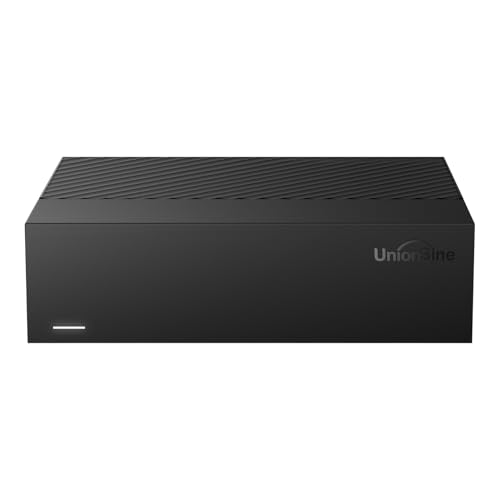
When your primary objective is massive capacity for long term desktop archives or media servers, the UnionSine Desktop External Hard Drive 14TB delivers exceptional storage real estate. Its dedicated power adapter and anti vibration dampening ensure stable continuous performance during massive file transfers. Establishing a dependable storage ecosystem enhances your overall home and office living environment by keeping critical digital assets secure.
Frequently Asked Questions
How do I format an external hard drive to work on both Mac and PC?
To format an external drive for dual platform compatibility, connect the unit to either computer and select the exFAT file system. On macOS, open Disk Utility, select the target drive, click Erase, and choose exFAT from the format options. On Windows, launch Disk Management, right click the storage volume, choose Format, and select exFAT before confirming.
What is the main difference between exFAT and FAT32 file systems?
The primary difference lies in the maximum supported individual file size and overall volume capacity. FAT32 cannot store single files larger than four gigabytes, making it impractical for modern 4K video clips and disk backups. In contrast, exFAT supports individual files up to sixteen exabytes, allowing seamless handling of large media files across platforms.
Why can my Mac only read files from my Windows external hard drive?
Your external drive is formatted in Microsoft NTFS, which macOS supports only in a read only capacity out of the box. While you can open and copy files from an NTFS drive onto a Mac, you cannot save new files or modify existing documents on it. Reformatting the drive to exFAT grants full read and write permissions on both operating systems.
Are portable solid state drives better than mechanical hard drives for cross platform use?
Solid state drives offer significantly faster transfer speeds, smaller dimensions, and better physical durability against drops and vibrations during travel. However, mechanical hard drives provide much larger storage capacities at a more economical price per gigabyte. The better option depends on whether you require fast editing throughput or massive long term archive space.
Can I use a single external drive for both Apple Time Machine and Windows File History?
Yes, you can use a single external hard drive by creating two distinct partitions on the storage device. Format one partition in APFS or Mac OS Extended for Apple Time Machine backups, and format the second partition in exFAT or NTFS for Windows File History. This partition structure keeps your backup archives isolated and fully functional on each respective operating system.
What is the top option among Best External Hard Drives for Both Mac and PC in 2026 for high capacity desktop storage?
For immense stationary storage capacity, the UnionSine Desktop External Hard Drive 14TB is a standout option in 2026. It features dedicated power delivery and a resilient internal chip solution designed for sustained high capacity storage across platforms.
Do I need to install special drivers to use Best External Hard Drives for Both Mac and PC in 2026?
Most external hard drives formatted in exFAT operate as plug and play devices on both macOS and Windows without extra software drivers. Both operating systems automatically recognize USB mass storage devices through native platform controllers. Only specialized features like hardware password encryption or backup software utilities require optional manufacturer application installs.
Why is safe drive ejection important on both Mac and PC?
Safe ejection ensures that all active write caching operations finish completely before electrical power to the drive is disconnected. Removing a drive while write operations are active can corrupt the file allocation table and cause permanent data loss. Always select Eject in Windows File Explorer or drag the storage icon to the Trash on macOS before disconnecting.
Can I edit 4K video directly from an external hard drive?
Yes, you can edit 4K footage directly by utilizing a high performance solid state drive with transfer speeds exceeding one thousand megabytes per second. The Sandisk 2TB Extreme Portable SSD provides the continuous bandwidth necessary to scrub high bitrate video timelines smoothly. Traditional mechanical drives are generally too slow for real time multi stream 4K video editing.
Why does an external solid state drive become warm during file transfers?
High speed data transfers generate electrical heat across NAND flash memory cells and bridge controller chips inside the enclosure. External enclosures are designed to dissipate heat outward through their chassis to protect internal circuitry from thermal degradation. Exterior warmth during prolonged transfers is normal, provided the drive is kept in a well ventilated space.


Write Your Review
No reviews yet. Be the first to share your experience!