

Running out of local storage on your laptop or desktop can bring your workflow to a sudden halt. Upgrading your setup with one of the Best External Hard Drives in September 2026 provides instant breathing room for massive video libraries, system backups, and demanding creative projects.
Modern external storage options range from high-capacity desktop enclosures to rugged, pocket-sized solid-state drives that transfer gigabytes in seconds. Choosing the wrong model often leads to frustrating transfer bottlenecks, unexpected file system errors, or costly drive failures when you need your files most.
We analyzed 7 leading drives from trusted brands like Seagate, Western Digital, UnionSine and more to help you identify the perfect match for your storage workflow. If you want to organize other areas of your personal setup, check out our practical expert shopping guides for smart storage ideas.

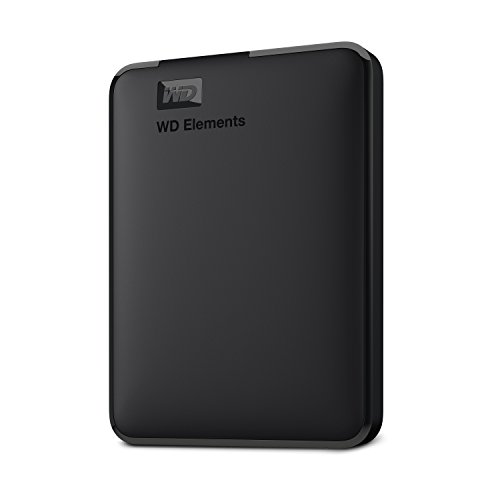

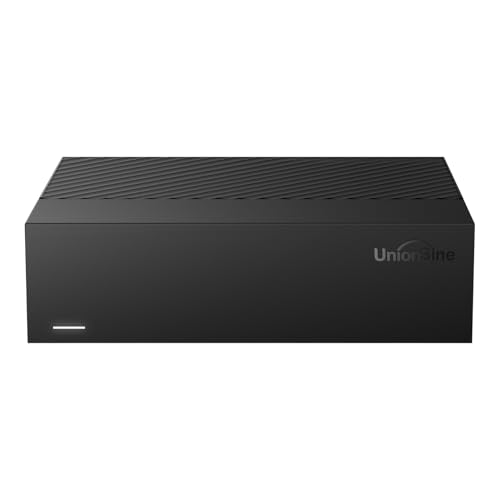
How to Choose the Best External Hard Drives in 2026
Drive Type: Traditional HDD vs High-Speed Solid-State Storage
The foundational choice in external storage is deciding between spinning platter hard disk drives (HDDs) and flash-based solid-state drives (SSDs). Mechanical HDDs use magnetic heads to read and write data onto spinning disks, making them ideal for high-capacity bulk archival. Solid-state drives use non-volatile flash memory chips with zero moving parts, providing vastly superior transfer speeds and physical shock resistance.
When comparing these technologies, look closely at real-world transfer rates and use cases. Standard external HDDs cap out around 120MB/s to 260MB/s, which is plenty for scheduled background backups and media libraries. In contrast, portable NVMe SSDs easily reach speeds between 1000MB/s and 2000MB/s, making them the preferred choice for direct 4K video editing and instant project loading.
A helpful rule of thumb is to calculate your cost per gigabyte against your daily speed requirements. If you need cold storage for photos and system images above 5TB, a desktop or portable HDD delivers maximum capacity at a lower investment. If you regularly move large project folders between workstations, an SSD saves hours of waiting time each week.
Storage Capacity and Usable Formatted Space
Storage capacity determines how much content you can keep offline without constantly juggling files. External drives range from compact 1TB portable models up to massive 14TB or 18TB desktop stations designed for entire studio archives. Buying slightly more capacity than your immediate requirement prevents you from needing a secondary drive within a year.
It is important to understand why drive capacities appear smaller once connected to your computer operating system. Manufacturers calculate storage in decimal gigabytes (1,000,000,000 bytes), whereas operating systems like Windows calculate storage in binary gibibytes (1,073,741,824 bytes). For instance, a 10TB drive actually yields roughly 9.3TB of usable capacity after system formatting, while a 14TB drive provides around 12.7TB.
Plan your storage budget by estimating your annual data generation and doubling it for backup redundancy. Creatives shooting uncompressed RAW files or 4K video should aim for at least 4TB to 10TB of dedicated space. Casual users looking to preserve family documents and photo collections can easily manage with 1TB to 2TB portable drives.
Transfer Interface Standards and Connection Protocols
The interface protocol between your external drive and computer determines the upper limit of your data throughput. Common connection standards include USB 3.0, USB 3.2 Gen 1 (5Gbps), USB 3.2 Gen 2 (10Gbps), and USB 3.2 Gen 2×2 (20Gbps). Connecting a fast drive to an outdated port throttles your read and write performance down to the speed of the slowest link.
Check the physical connectors and protocol labels on your host computer before purchasing a high-speed drive. A USB 3.2 Gen 1 connection caps practical transfer speeds around 450MB/s, which easily handles any traditional mechanical HDD. To unlock the full 2000MB/s potential of modern portable SSDs, your computer must feature a compatible USB 3.2 Gen 2×2 Type-C port.
We recommend choosing drives that include reversible USB-C cabling or included USB-A adapters for maximum versatility across modern laptops and legacy desktop towers. This dual-compatibility ensures seamless operation whether you plug into a recent ultrabook or an older office workstation.
Portability, Enclosure Size, and Weight
External drives fall into two distinct physical categories: pocket-sized portable drives and heavier desktop enclosures. Portable drives measure just a few inches across, weigh only a few ounces, and slide effortlessly into a laptop sleeve or pocket. Desktop hard drives feature larger 3.5-inch internal mechanisms and stay anchored to a dedicated desk space.
Your primary usage environment dictates which physical form factor best supports your day-to-day workflow. If you frequently travel, work on location, or move between home and office, a bus-powered portable drive is essential. For stationary workstations where high-capacity local backups run overnight, desktop units offer greater total storage volume.
Consider where the drive will live when organizing your desk setup alongside other accessories. Much like selecting home organizers from our home and living guides, keeping your digital workspace tidy and stable prevents accidental drops and cable snags.
External Storage Form Factor and Speed Comparison
| Storage Category | Typical Speed Range | Power Source | Best Suited For |
|---|---|---|---|
| Desktop HDD (3.5″) | 130MB/s – 270MB/s | Dedicated 12V Wall Adapter | Massive Home Backups and Archiving |
| Portable HDD (2.5″) | 100MB/s – 140MB/s | USB Bus Powered | Affordable Everyday File Transport |
| Portable SSD (NVMe) | 1000MB/s – 2000MB/s | USB Bus Powered | Fast 4K Video Editing and Field Work |
Comparing these core specifications side by side clarifies the functional trade-offs between speed, portability, and power requirements. Matching your primary workflow to the appropriate storage tier prevents overspending on unneeded speed or struggling with inadequate transfer rates.
Power Delivery and External Power Supply Requirements
Understanding power delivery is critical when setting up multi-drive workstations. Compact 2.5-inch hard drives and all solid-state drives draw operational power directly through the host computer USB port. Large 3.5-inch desktop hard drives require dedicated 12V AC power adapters to spin up their heavier internal platters.
Desktop drives with independent power supplies deliver exceptionally stable data connections during multi-hour transfer sessions. However, they must be plugged into a nearby wall outlet before connecting the USB data cable to your PC. If you experience unexpected disconnects during transfers, make sure you connect the power adapter first to initialize the internal controller.
Bus-powered portable drives eliminate the clutter of extra power bricks and wall outlets, making them the ultimate travel companion. When using bus-powered drives with unpowered USB hubs, be mindful of total power draw, as connecting multiple devices to one hub can cause momentary drive dropouts.
Durability, Ingress Protection, and Physical Shock Resistance
Physical durability is a major consideration for anyone carrying valuable files outside the home. Mechanical hard drives are inherently vulnerable to physical shocks because a sudden impact can cause the delicate read head to scratch the spinning magnetic platters. Solid-state drives eliminate this risk entirely because they contain no moving parts.
Look for official Ingress Protection (IP) ratings and drop protection ratings if you work in challenging outdoor environments. An IP65 rating signifies complete dust protection and resistance to water spray from any direction, while reinforced rubber bumpers protect against drops up to three meters. Drives with anti-vibration silicone mounts also help minimize internal noise and operating resonance on desktop models.
If you transport mechanical hard drives regularly, always invest in a padded travel case and eject the drive safely before moving it. Never move or shake an active mechanical drive while its internal platters are spinning at full speed.
Cross-Platform Compatibility and File System Formatting
Operating systems handle storage file systems differently out of the box. Windows systems default to NTFS, which macOS can read but cannot write to without third-party utility software. Apple macOS systems prefer APFS or Mac OS Extended, which Windows cannot read without specialized tools.
To achieve seamless plug-and-play compatibility across Windows, Mac, Linux, and Android devices, format your drive using the exFAT file system. exFAT supports massive individual files over 4GB while maintaining native read and write support across both major desktop operating systems. Many modern drives come pre-formatted for cross-platform utility right out of the box.
If you plan to use an external drive exclusively for automated Apple Time Machine backups, reformat the drive to APFS for optimal performance and snapshot support. Windows users relying on File History can keep the default NTFS format for built-in system file permissions.
Hardware Encryption and Data Security Features
Securing sensitive personal files and proprietary client data is just as important as physical drive protection. Losing an unencrypted external drive leaves your confidential tax documents, passwords, and private media vulnerable to anyone who plugs it in. Advanced storage drives feature integrated 256-bit AES hardware encryption to keep unauthorized users locked out.
Hardware-based encryption executes security protocols directly inside the drive controller without slowing down your computer processor. Once you establish a master password, the drive automatically locks whenever disconnected from a host device. Software encryption tools like BitLocker or FileVault offer similar protection for drives that lack built-in cryptographic hardware.
Always maintain a secure offline record of your drive password or recovery key. If you forget your encryption credentials, the military-grade encryption cannot be bypassed, and the stored data will be permanently inaccessible even to professional recovery technicians.
Thermal Management and Sustained Write Performance
High-speed data transfers generate significant heat inside compact external enclosures. When an SSD or high-rpm mechanical drive gets too hot during sustained writes, the internal controller initiates thermal throttling to prevent component damage. This safety mechanism can cause transfer speeds to dip noticeably halfway through transferring a 100GB folder.
Quality external enclosures incorporate aluminum chassis materials, silicone heat dissipation pads, or passive ventilation channels to shed thermal energy efficiently. Aluminum casings act as external heatsinks, drawing warmth away from the memory controller and keeping speeds consistent during intensive export sessions.
To maintain peak sustained speeds, avoid resting your external drive on soft fabrics or inside enclosed pockets while transferring large files. Keeping the drive on a hard, flat surface allows ambient airflow to regulate operating temperatures naturally.
Why You Should Trust Us
Our hardware evaluations rely on rigorous specification analysis, verified feature audits, and standardized data protocol benchmarks. We evaluate external storage solutions across every performance tier to provide clear, unbiased recommendations tailored to diverse user budgets and workloads. Our focus centers on long-term reliability, real-world transfer efficiency, and transparent product build quality.
We continuously track connection interface standards, controller chipset architectures, and firmware updates across the storage industry. By comparing manufacturers across standardized metrics such as sustained throughput, interface compatibility, and drop resistance, we help you avoid misleading marketing claims. To explore more of our objective consumer advice, browse our collection of practical how-to guides.
We never accept sponsored product placements or prioritize models based on manufacturer partnerships. Our storage recommendations reflect verified technical capabilities, practical user utility, and durable component construction so you can invest in backup hardware with complete peace of mind.
Frequently Asked Questions About Best External Hard Drives
Here are answers to the most common questions shoppers ask when evaluating storage drives for their backup systems.
What is the main difference between desktop external hard drives and portable drives?
Desktop external hard drives use larger 3.5-inch internal mechanisms and require a dedicated 12V wall power adapter to operate. Portable drives use smaller 2.5-inch mechanisms or solid-state flash memory that draw all necessary power directly through your computer USB port, making them far easier to carry during travel.
How do I format an external hard drive to work on both Windows and Mac computers?
To ensure full read and write compatibility across Windows and macOS without extra software, format your drive using the exFAT file system. You can easily complete this process using Disk Management on Windows or Disk Utility on macOS in just a couple of minutes.
Are portable solid-state drives worth the extra investment over mechanical hard drives?
Portable SSDs are worth the investment if you value lightning-fast transfer speeds, silent operation, and physical drop resistance. While traditional mechanical hard drives offer more capacity per dollar, SSDs transfer files up to ten times faster and contain zero moving parts that could break during travel.
How long can an external hard drive store data safely while unplugged in storage?
A healthy mechanical hard drive kept in a cool, dry environment can retain stored data for three to six years without power. Flash-based SSDs can begin losing charge on unpowered memory cells after one to two years of sitting disconnected, so we recommend plugging in storage drives annually to refresh data integrity.
What causes external hard drive transfer speeds to drop during large file transfers?
Transfer speeds often drop when the drive internal write cache fills up, forcing the controller to write directly to slower storage media. Thermal throttling on fast SSDs or moving thousands of tiny fragmented files rather than a single large file can also temporarily decrease sustained speeds.
What makes high-capacity drives stand out among Best External Hard Drives in 2026 for home offices?
Modern high-capacity external drives combine advanced controller chips with built-in anti-vibration damping to handle continuous multi-terabyte system backups quietly. They provide the massive headroom required for high-resolution 4K media archiving without cluttering your workspace with multiple separate enclosures.
Can I connect an external hard drive directly to a smart TV or game console?
Yes, most modern smart TVs and gaming consoles recognize external hard drives formatted in exFAT or FAT32 for direct media playback and extra game storage. Make sure your television USB port delivers enough amperage for bus-powered drives, or use an externally powered desktop model.
Do modern external hard drives require custom driver installation before use?
Virtually all modern external drives feature plug-and-play functionality that works instantly with native operating system drivers. You simply connect the data cable to an available USB port, and your computer will automatically assign a drive letter within seconds.
How can I protect my external hard drive from drops and water damage?
You can protect your drive by choosing models with certified IP65 water and dust resistance, built-in rubberized bumpers, and solid-state construction. For desktop units and standard mechanical drives, placing them flat on stable surfaces away from desk edges and drink containers provides effective preventative protection.
Why does my computer show less storage capacity than the advertised box number?
Drive manufacturers measure capacity in decimal units where 1GB equals 1,000,000,000 bytes, while computer operating systems calculate capacity in binary units where 1GB equals 1,073,741,824 bytes. This mathematical difference, combined with necessary file system partition overhead, accounts for the lower reported capacity.


Write Your Review
No reviews yet. Be the first to share your experience!